Student Portal Guide
The student portal is where students and families keep up with the school online: classes and ranks, memberships, appointments, events, invoices and the Media Library. This guide walks through each page. If anything here doesn't match what you see, or you need something changed that you can't change yourself, ask at the front desk.
Getting your account
Accounts are by invitation from the school - there's no sign-up form. If you haven't received an invitation, ask at the front desk.
- Open the invitation email and click its link. The invitation goes to the student's email, or for a child, to a parent or guardian.
- Choose a password and type it again, then click Create my account. Your email address is your login name.
- You're logged in and taken to your account.
An invitation link works once and expires after 14 days. If it says Invitation not found, it was already used, replaced by a newer one, or expired - ask the school to send a new one, or just log in if you've already set up your account.
Families: one login for everyone
A parent or guardian uses one login for the whole family. When the school invites another of your children, the email offers to Add them to your account - click it, then log in with your usual password. You never need a separate login per child.
When your login covers more than one person, a Showing list appears at the top of your account. It starts on you; pick a name to switch everything below - home page, details, invoices and Media Library - to that person, and it stays on them until you pick someone else or log out. A parent who doesn't train has no attendance, ranks, events or Media Library of their own: choose one of your children under Showing to see theirs.
Each parent sees their own account and their children's, never the other parent's own account. On your children's accounts you see everything billed for them, including what another parent pays: a membership or invoice set up by a co-parent shows Set up and paid by them and can't be changed or paid by you, and a card another parent saved shows with their name and can only be used or removed by them.
If the school set you up as a co-parent, your login has your own account, and for each of your children their Home, Attendance, Ranks, appointments and events, Media Library, and the memberships, invoices and saved cards you pay for. You can register a child for an event, and its fee goes on your invoices. Their details and messages aren't shown to you, and you don't see what their other parent or guardian pays.
A student's own login (made from their personal email) shows only them.
If you log in and see Your login isn't linked to a student yet, ask the school to send an invitation for each student in your family.
Logging in and out
Click Log in at the top of any page and enter your email and password. Tick Keep me logged in on this device only on your own phone or computer.
- Forgot your password? on the login page emails you a link to choose a new one. The link is sent only if the email matches an account, and works for a limited time - use Request a new link if it has expired.
- Log out is at the top right. Always log out on a shared computer.
Home
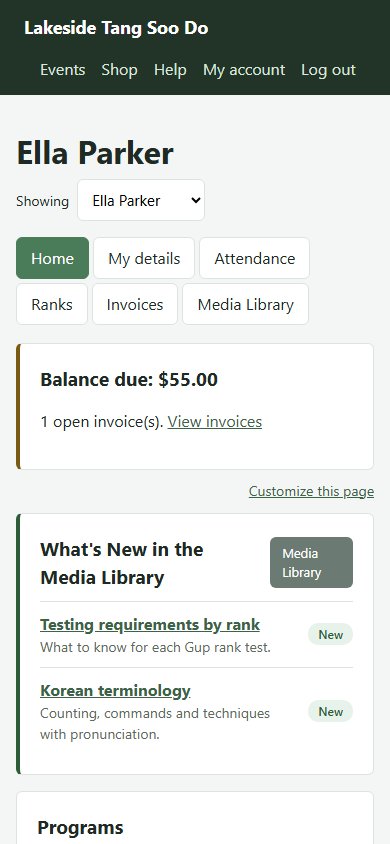
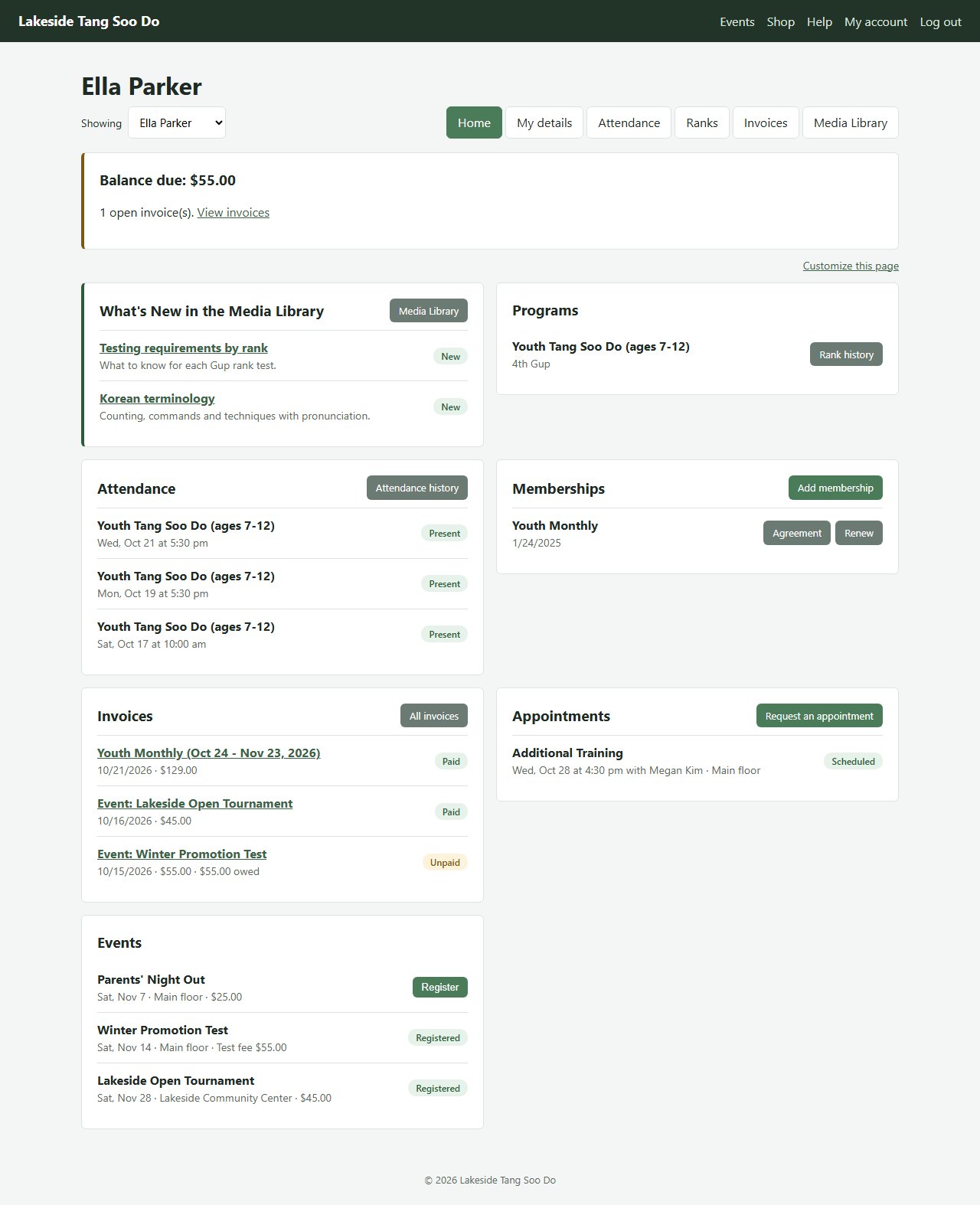
Your home page shows, for the person selected:
- Balance due - shown at the top when there are unpaid invoices, with a link to view (and, where available, pay) them.
- What's New in the Media Library - shown only when the school has shared something new with you since your last visit: new articles, downloads or videos you can now see, newest first. Click one to open it. It's cleared the next time you log in.
- Programs - the programs you're enrolled in and your current rank in each, with a Rank history button that opens your promotions in that program's style.
- Attendance - your last 3 classes, with Attendance history for the rest.
- Memberships - your current memberships, with their dates. A membership shows on hold while it's paused.
- Invoices - your 3 most recent invoices and their status; click one to see it in full, or All invoices for the rest.
- Appointments - upcoming appointments with the date, time, who it's with and where, and under Recent the last 60 days' appointments marked Completed, Missed or Canceled once the school has updated them.
- Events - upcoming events at the school.
Customizing your home page
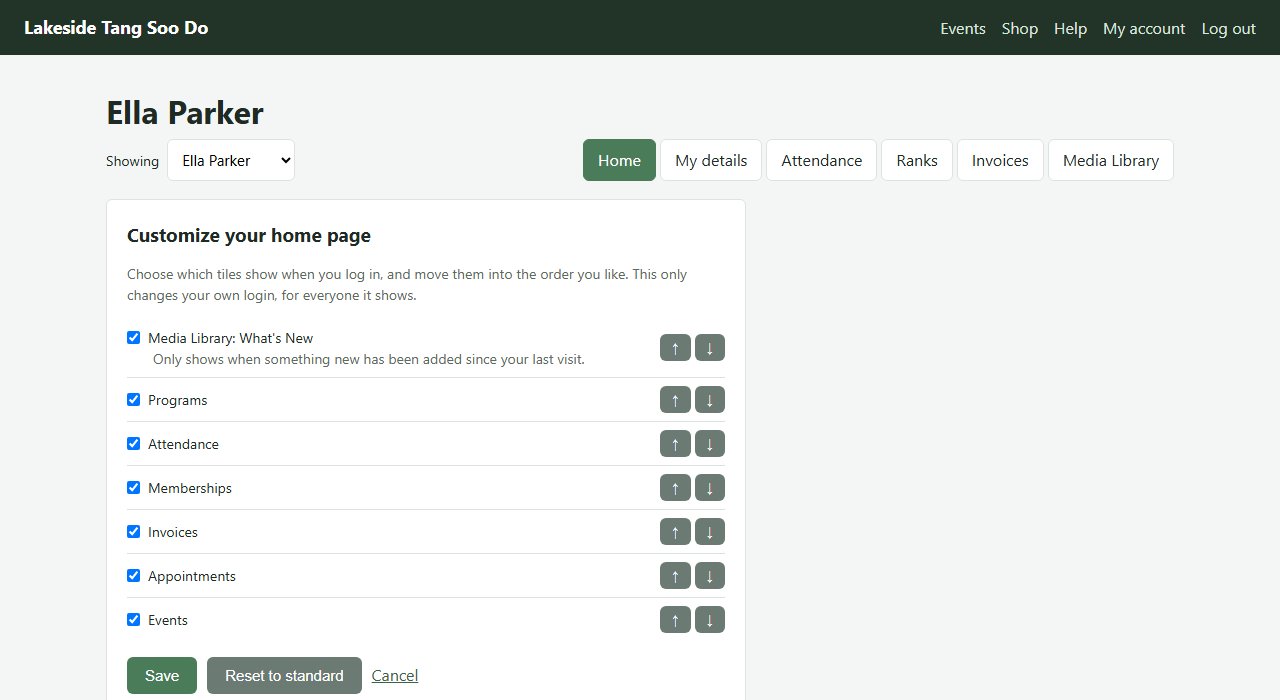
Click Customize this page (top right of Home) to choose what you see when you log in (What's New can be hidden or moved like the rest, and still only appears when there's something new). Untick a tile to hide it, use the ↑ and ↓ buttons to move tiles up or down, and click Save. Reset to standard puts everything back. Your layout is saved for your login, so on a family login it's the same for everyone you look at. The Balance due notice always shows when something is owed.
Adding or renewing a membership
Click Add membership (or Renew next to a current one), pick the membership and the date it should start, add a note if there's anything the school should know, and click Send request. The request shows as Waiting for the school until it's confirmed. Once the school approves it, the invoice appears on your Invoices page.
Signing your membership agreement
Some memberships come with an agreement to sign. When one is waiting, your Home page shows Please read and sign your ... and the membership has a Sign agreement button. Read the agreement, type your full name, sign in the box with your mouse or finger (Clear starts again), tick I have read this agreement and agree to its terms, and click Sign agreement. Signing for a child? Use your own name and signature as their parent or guardian.
Once signed, the membership's Agreement button opens your signed copy, which you can print.
Requesting an appointment
Click Request an appointment, choose what it's for, a preferred date, and optionally a preferred time (for example "after 5pm") and notes, then Send request. It shows as Requested until the school confirms a time, then as Scheduled with the details.
Registering for events
Each upcoming event shows whether you can register:
- Register - click it to sign up. If the event has a fee, you'll be asked to confirm, and the fee is added to your invoices.
- Registered - you're already signed up.
- Review & register - for a promotion test (see below).
- For students in ... - the event is only open to students of a particular program or style.
- Registration opens ... / Registration closed - online registration isn't open yet, or has ended. Registration can close before the event itself.
Promotion tests
A promotion test has no single price: the test fee is the one set for the rank you hold now, and the Events list shows yours. Click Review & register to see, before you sign up:
- The test fee for your current rank, which is added to your invoices when you register. If your rank has no test fee, you can sign up free as a volunteer, to be evaluated on your current progress only.
- Ready for promotion? - your days at your current rank on the test day, and the classes you've attended since earning it, against the minimums for that rank. Not yet means that, on what's on record today, you may not meet the minimum by the test day - you can still register, but check with an instructor if you're unsure.
Messages
Use Messages to write to the school at any time. When the school sends you a message through the student portal, you get an email saying so, your Home page shows an alert and Messages shows how many are new. Open it to read the conversation and reply. On a family login, each person has their own conversation: use Showing to switch. If the school wrote to you before you had an account, the email includes a link to create one.
Attendance
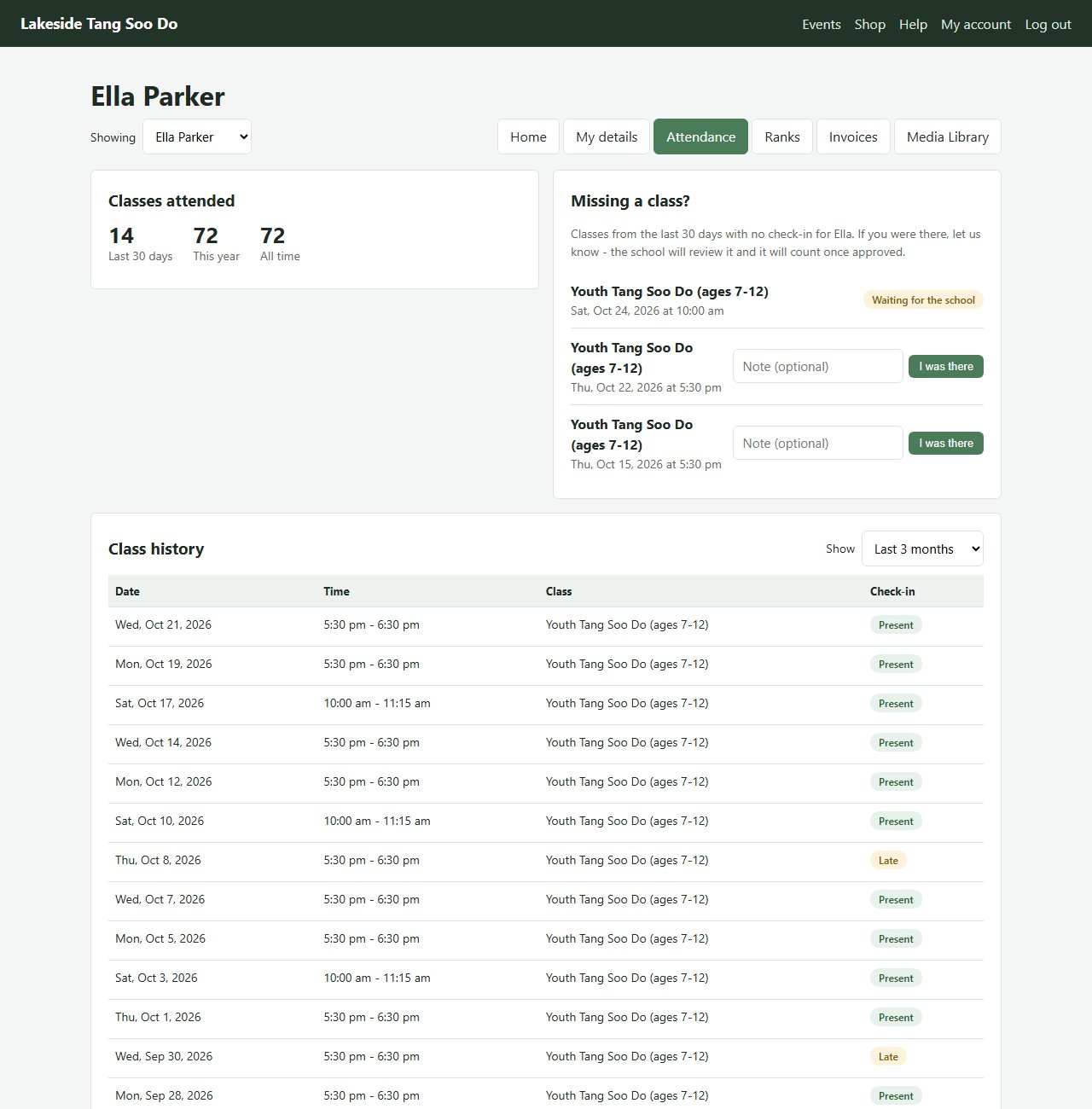
Attendance shows the classes you've attended: how many in the last 30 days, this year and in total (and per program, if you're in more than one), then each class with its date, time and whether you were checked in Present or Late. Use Show to see the last 3 months, the last 12 months, or every class.
Missing a class?
Forgot to check in? Missing a class? lists your classes from the last 30 days that have no check-in for you. Click I was there next to the class (add a note if it helps, such as "forgot my card"). Depending on how your school has set things up, it's either added to your attendance straight away, or shows Waiting for the school until it's approved and then appears in your attendance. Not approved means the school couldn't confirm it - ask an instructor if you think that's a mistake. Each class can be reported once.
Ranks
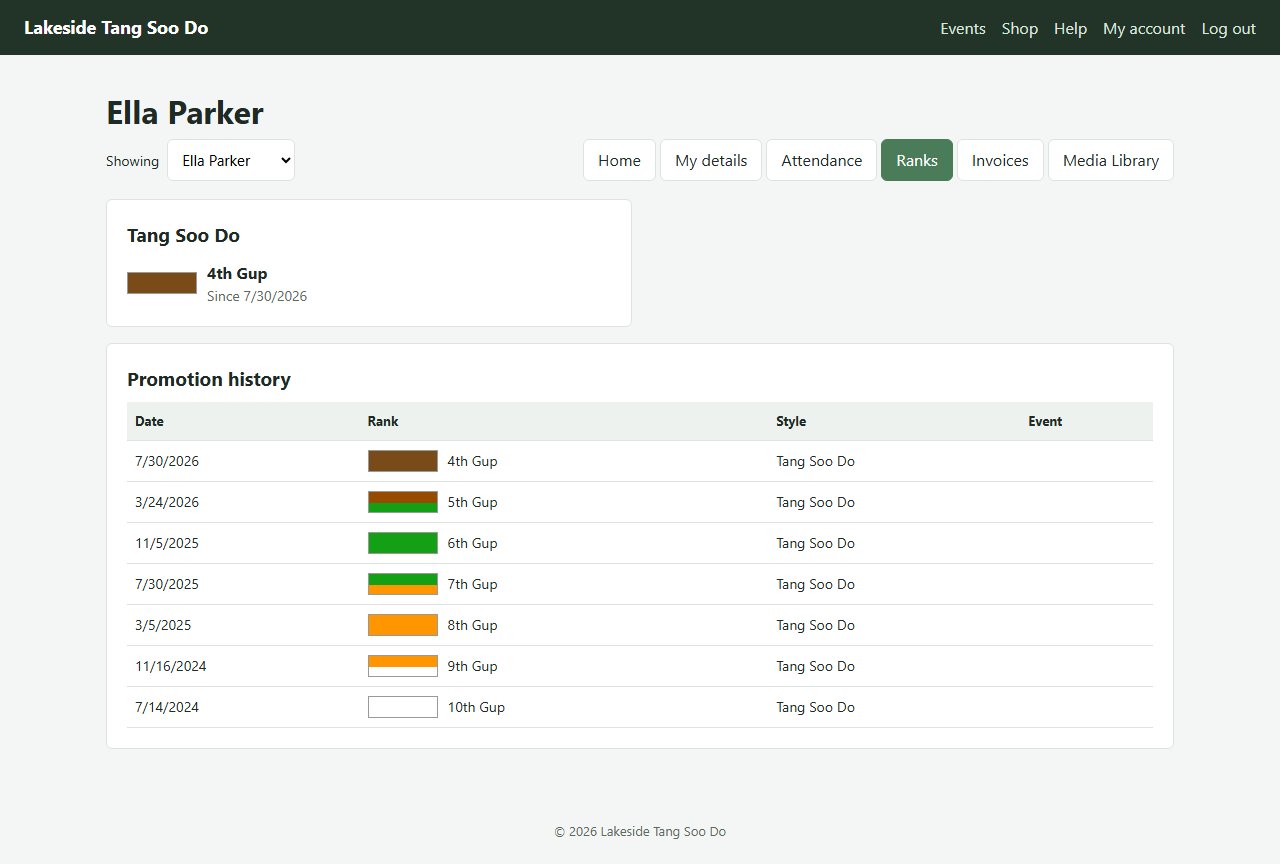
Ranks shows your current rank in each style, with the date you earned it, and your full promotion history - every rank, its date, and the testing event where you earned it.
My details
My details is where you keep your contact information up to date (if your school has turned this off, your details are shown but you'll need to contact the school to change them):
- Email and phone.
- Address.
- Birthday and gender - you can fill these in if the school doesn't have them yet. To correct one already on file (or a name), ask the school.
- Emergency contacts - up to three, each with a name and phone. Change a phone number, tick Remove to take one off, or add a new one in an empty row.
Click Save my details. The school is notified of every change you make here.
Text messages, below your details, is where you choose whether the school may text you: pick the number, tick the box to agree, and click Save text message choice. You'll get a text confirming you're signed up. Untick it and save to stop texts (or reply STOP to any text). Your text message history shows when you agreed or turned texts off. You can change this even if the school doesn't let you edit your other details. If you change your phone number, agree again for the new one. If you stopped texts by replying STOP, our text service keeps blocking them until you also text START to the school's number - the page reminds you, with the number. START only lifts that block at the text service: it doesn't sign you up for the school's texts. To get texts again you must agree here (or on one of the school's sign-up forms) and text START. Text HELP to the school's number any time for contact details; nothing changes.
Invoices
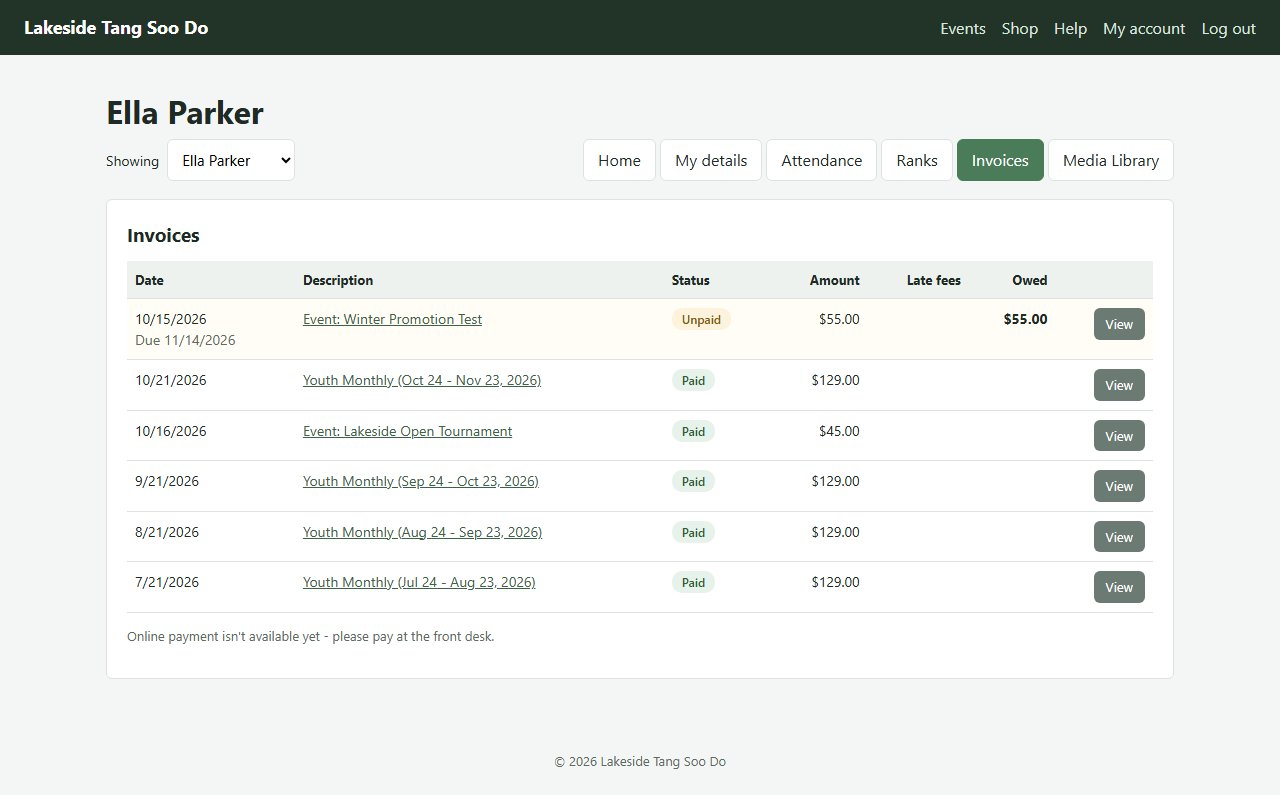
Invoices lists every invoice for the person selected, open ones first, with:
- the date (and due date for open invoices) and what it's for,
- its status - Unpaid, Partly paid, Paid, Waived (the school cancelled the amount) or Overdue,
- the amount, any late fees added for paying late, and what's still owed.
Click an invoice to see each line item, the payments made against it, and the school's details - handy for your records. If the school gives you a refund, the invoice shows Refunded to you and lists each refund and where it went (back to your card, to your account credit, or given back to you directly). You'll also get a refund receipt by email. A refund to a card usually shows on your statement within 5-10 business days.
Paying online
When the school accepts card payments online, open invoices have a Pay button:
- Click Pay next to the invoice (or Pay ... now on the invoice itself).
- You're taken to the payment company's secure checkout page (Stripe or Square). Enter your card details there - they never reach the school's system.
- After paying you come back to your invoices with Thank you - your payment was received, and the invoice shows as paid.
If you see We're still waiting for the payment to be confirmed, the payment company hasn't confirmed it yet - it will show on the invoice shortly, so please don't pay twice. If you close the checkout page without paying, nothing is charged; you can click Pay again any time.
If there's no Pay button, online payment isn't available yet - please pay at the front desk.
Account credit and gift cards
If your family has account credit with the school (for example money kept from an overpayment, or a gift card you added), the Invoices page shows the balance and its history. Credit is shared by everyone on your login. When you pay an invoice or event fee, Use ... of my account credit is ticked for you; untick it to save the credit for later. Your card pays whatever the credit doesn't cover, and if it covers everything, there's nothing more to pay. Automatic card payments never use credit.
Have a gift card? You can:
- enter its code under Gift card code when paying an invoice or event fee, or at Shop checkout, or
- enter it under Have a gift card? Add it to your credit on the Invoices page and click Add gift card, which moves the card's whole balance into your account credit.
Gift cards never expire, and whatever isn't spent stays on the card. Only the person with the code can use it, so keep it safe.
Automatic payments
When the school offers it, Automatic payments lets you save a card so membership invoices are paid when they're due - no need to pay each one.
- Click Automatic payments, then Add a card.
- Enter the card on the payment company's secure form (Stripe or Square). The school only keeps the card type, last 4 digits and expiry date.
- Back on Automatic payments, the card pays any memberships that had no card. Under Memberships, choose which card pays each one, or No card - I'll pay each invoice to stop paying automatically.
Families share their cards: a card saved on one person can pay any of the memberships on your login. Remove deletes a card; memberships it paid go back to being invoiced.
Your Invoices page shows which invoices will be paid automatically, which were (and with which card), and any that were declined, with the date of the next try. You'll get an email receipt each time your card is charged. If it's declined, you'll get an email saying why, with a link to save a different card; the school tries again a few days later. The school may also email you a Set up automatic payments link - it works for 14 days without logging in.
Media Library
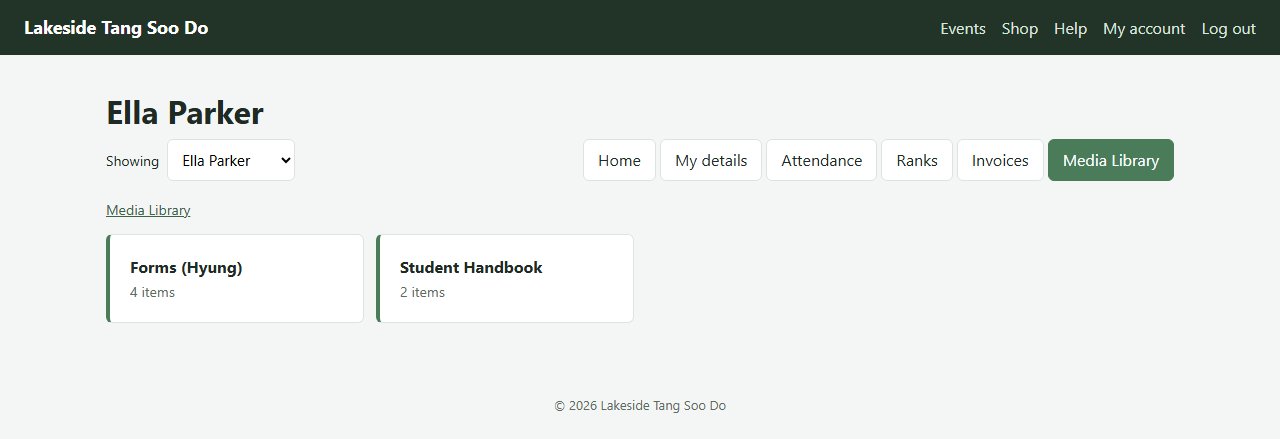
The Media Library holds articles, downloads and videos the school shares with students - for example form diagrams, study sheets or training videos. Open a category to see its items; some items are listed straight on the first page, below the categories. An item can have a description, files to download, and videos to watch right on the page.
The school chooses who sees each item (often by program or rank), so a brother and sister may see different things - switch between them with Showing. If you think something is missing, ask the school.
Please keep the school's materials to yourself and your family; don't share download links or recordings.
Events open to everyone
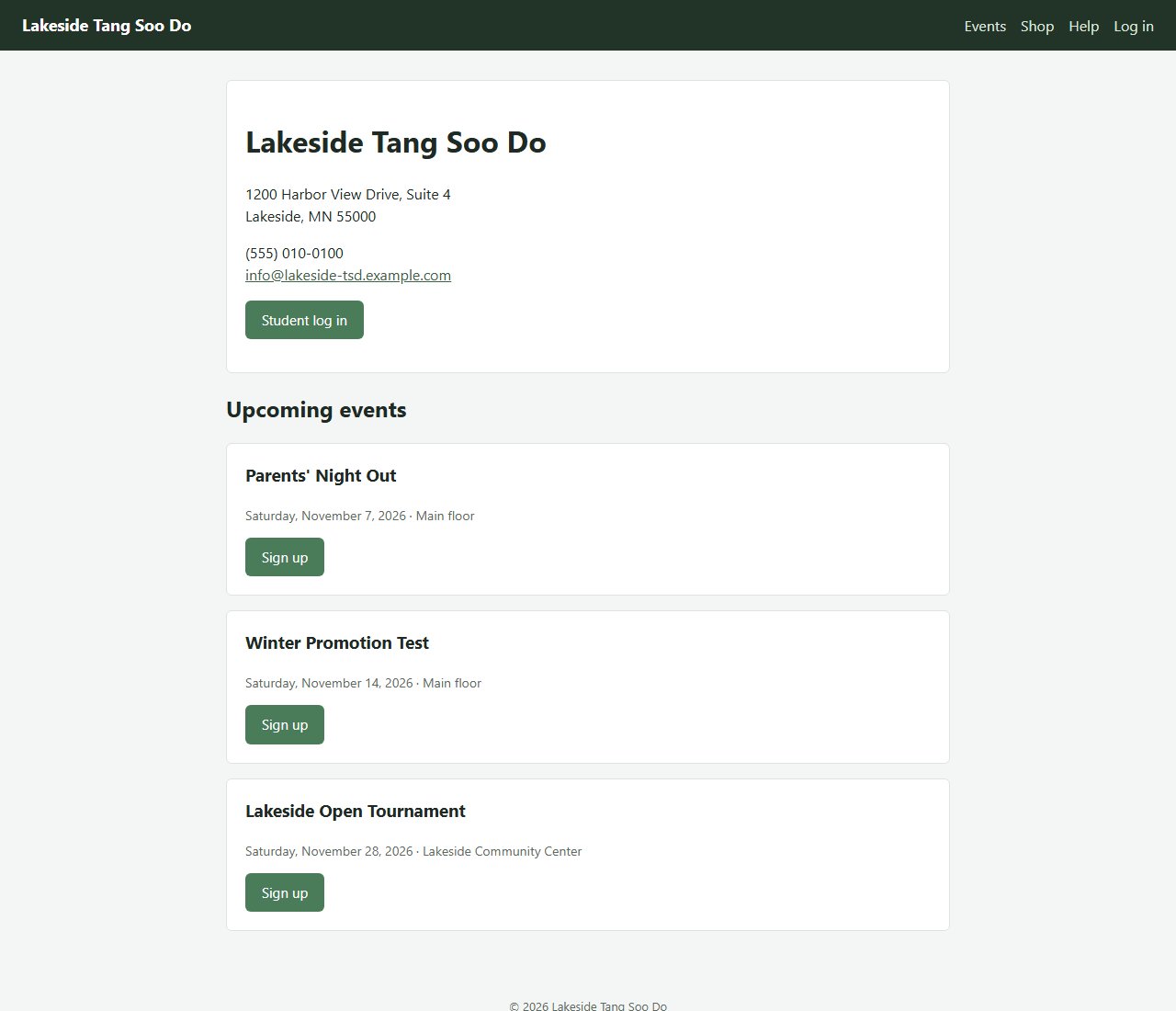
The Events link at the top of the site lists the school's public events. Anyone can sign up there without an account: click Sign up, enter a first and last name, email and (optionally) phone. Signing up a family member? Submit the form once for each person. Promotion tests are the exception: log in and register from your Home page, where you'll see your test fee.
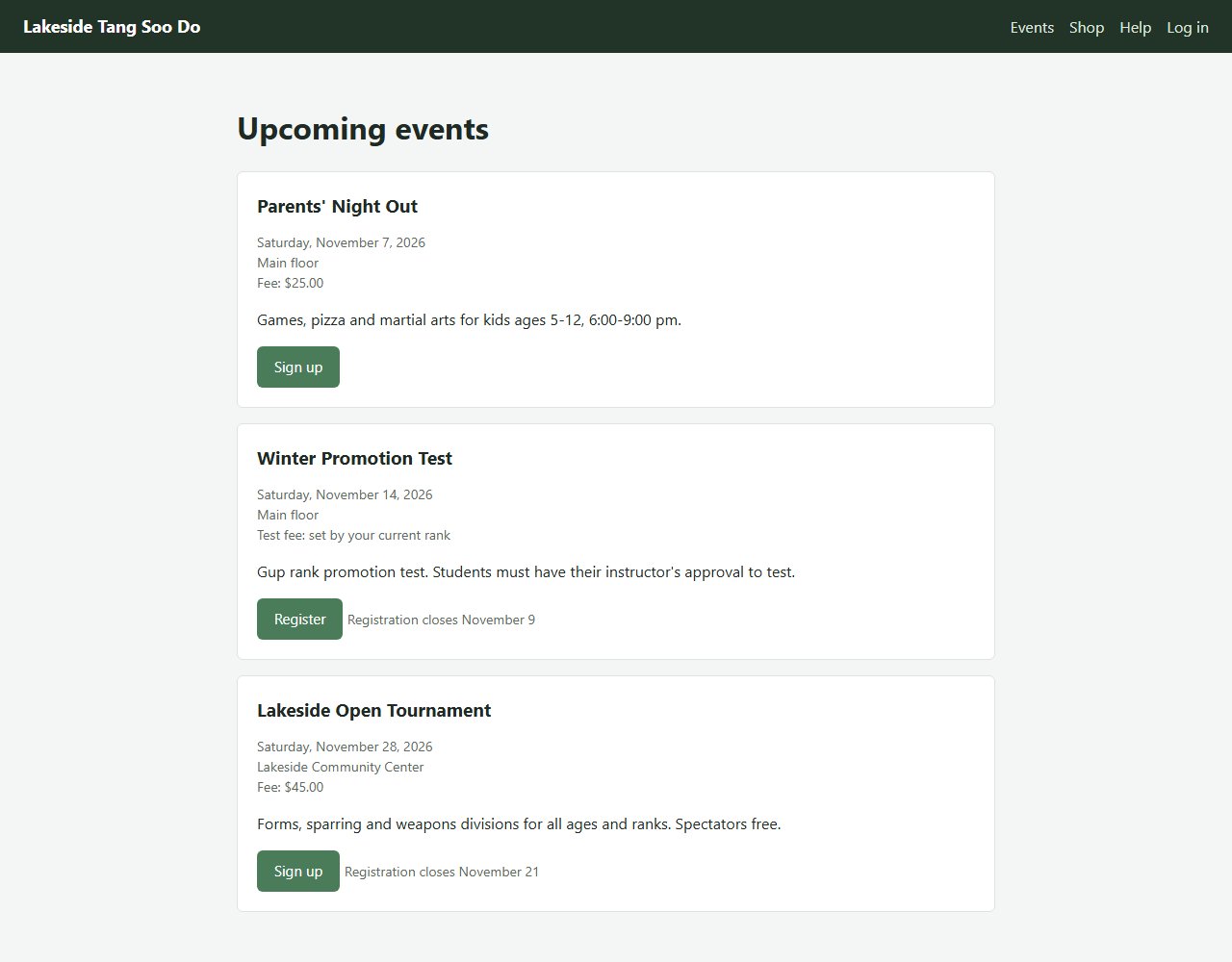
If you have an account, registering from your Home page is quicker and shows the event fee on your invoices.
Shop
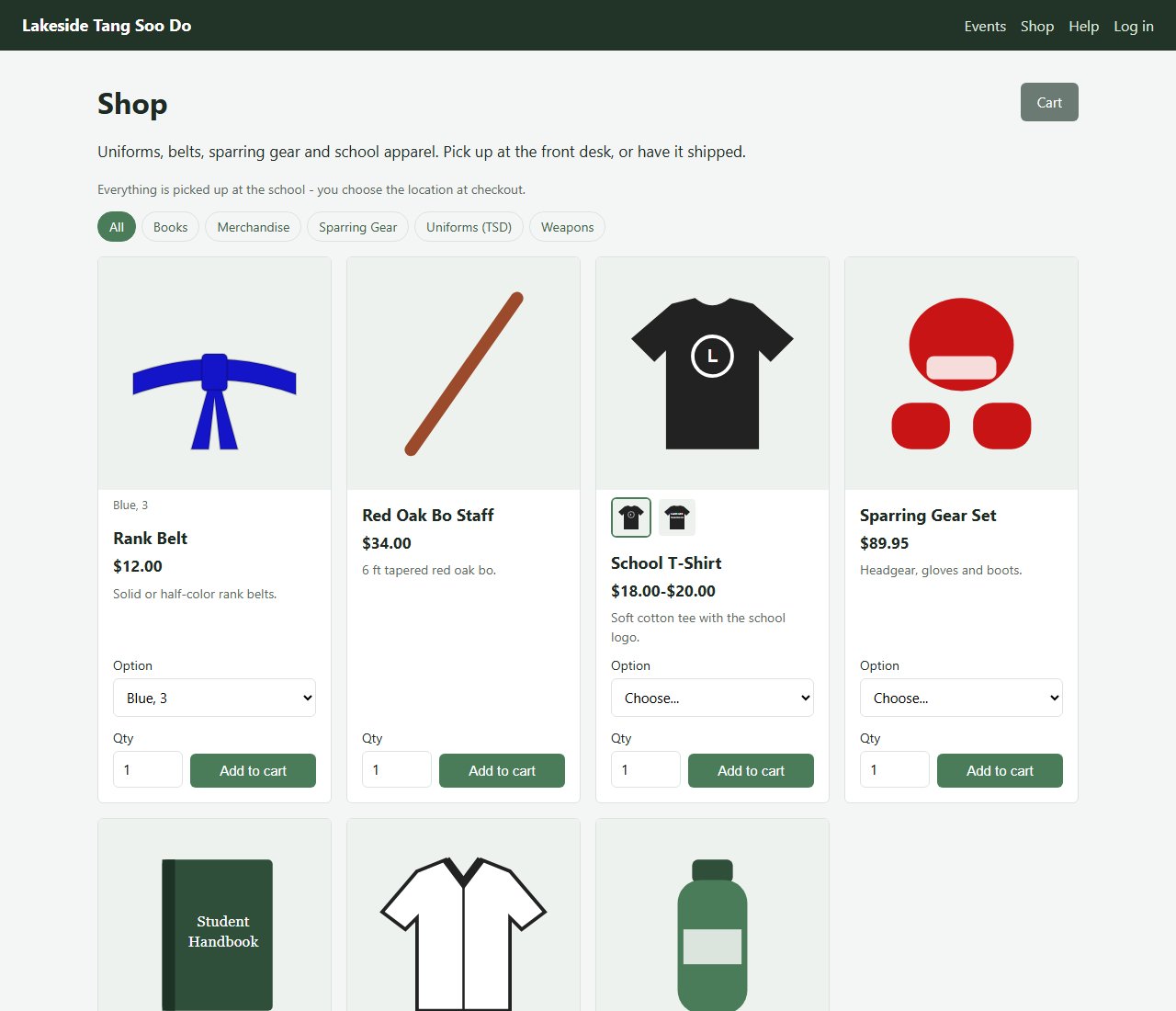
If the school has an online store, a Shop link appears at the top of the site. Anyone can order there without an account, so feel free to send the link to family. Click an item's name or photo to open its own page, with all of its photos, its full description and every option with its price and whether it's in stock (click an option there to choose it). Choose an option (such as a size) where asked, add items to your cart, then Check out: enter your name and email, who the order is for, and where you'll pick it up - or, for items the school ships, the address to ship to (shipping is added to the total). Depending on the school, you pay by card at checkout or when you pick it up; shipped orders are paid at checkout. Some items have different prices for different options (such as sizes), so the shop shows a price range and the price of each option.
Each item says whether it can be picked up, shipped or both. An order is either all picked up or all shipped, so if your cart has some items that can only be shipped and others that can only be picked up, place two orders. You'll get an email when your order is placed and another when it's ready to pick up or has shipped, and the link in the email shows your order at any time. If you're logged in, the order goes on your account and appears under Invoices. At checkout you can enter a gift card code, and when you're logged in, use your account credit.
Gift cards: when the school sells them, the shop has a Gift cards button. Choose an amount (or enter your own), who it's for and their email, add a message if you like, and pay by card. The gift card's code is emailed to them as soon as the payment goes through, and you get a receipt with the code too. To print it or hand it over yourself, enter your own email. Gift cards are paid by card only - not with credit or another gift card.
Checking in to class
Many classes use a check-in tablet at the front desk. When your class appears on it:
- tap your picture (type part of your name to narrow the list), or
- type your full name, or your student ID, and press Check in, or
- scan your personal QR code - ask the school for a copy.
If you tap the wrong person, use Not you? Undo right away. An instructor can also correct your attendance afterwards.
Privacy and security
- Your account shows only the people linked to your login. The school's own notes are never shown here.
- Card payments are handled entirely by the payment company.
- Use a password you don't use anywhere else, and log out on shared devices.
Need help?
Contact the school using the phone number or email on the site's home page, or ask at the front desk.